 Cozy
CozyMacBook Tips for Students: Set Up a Desk You Want to Study At
Ten MacBook tips for students, from Stacks and Focus to a desktop that feels like yours.
The most useful MacBook tips for students are the ones that make it easier to sit down and start: a clean desktop, one place for each class, fewer notifications, and a to-do list you can see. Here are ten tips for MacBook Air, MacBook Pro and MacBook Neo, from built-in settings to making your desktop a place you want to study at.
Set up your desktop
- One folder per class. Keep a folder for each class on the desktop and archive old terms at the end of each semester.
- Turn on Stacks. Control-click the desktop and choose Use Stacks. Screenshots, PDFs and images group themselves automatically.
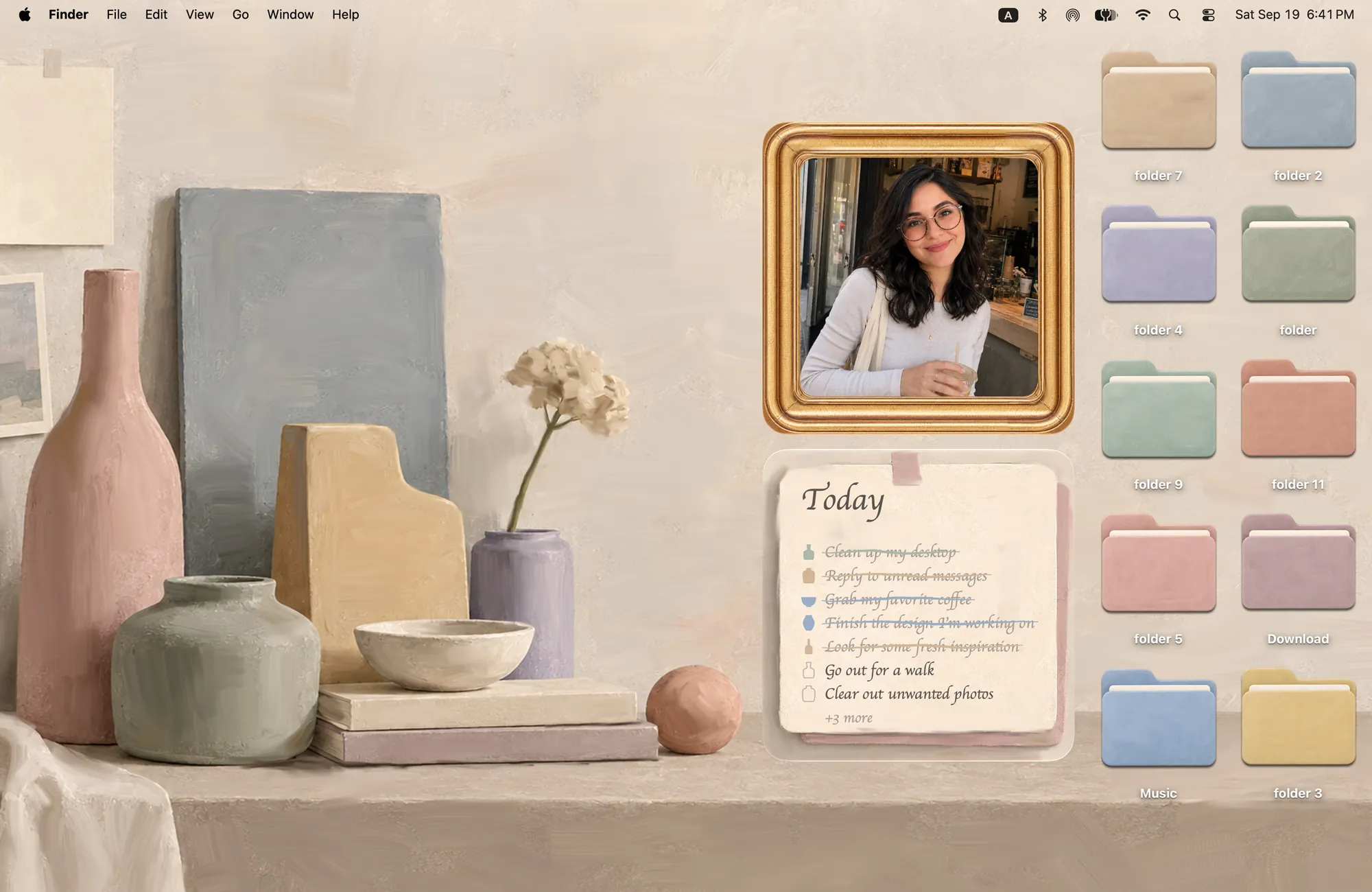
- Color-code classes. Give each class folder its own color or icon so you can find it at a glance. See How to change folder icons on Mac.
- Keep a to-do widget on the desktop. Control-click the desktop and choose Edit Widgets. Seeing the list beats remembering to open it.
Focus while you study
- Use a Focus mode. In System Settings > Focus, set up a Study focus that silences everything except the people and apps you choose.
- Hide the Dock. System Settings > Desktop & Dock > Automatically hide and show the Dock gives you more screen for notes.
- Split your screen. Hover over the green button at the top left of a window to tile it next to your notes or a lecture video.
Save time
- Spotlight for everything. Press Command-Space to open apps, find files and do quick math.
- Screenshot a slide. Press Shift-Command-4 and drag to capture just part of the screen.
- Make your desk somewhere you want to be. You look at your desktop every time you close a window. If it feels calm and a little yours, it is easier to come back to.
The Cozy way: a desk you want to study at
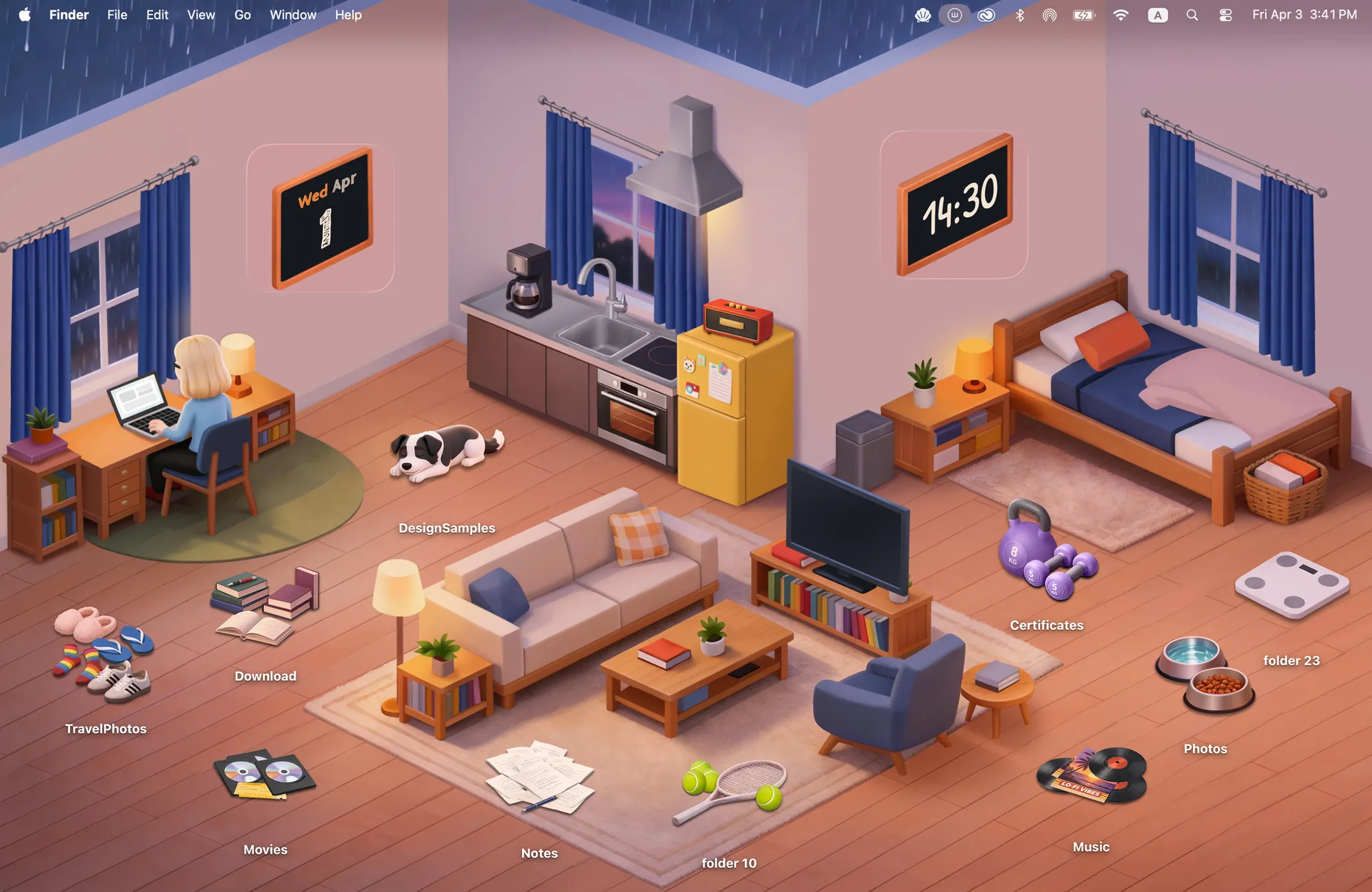
Tip 10 is where Cozy comes in. Cozy treats your MacBook as a digital space and designs it the way you would design a room. Each theme's wallpaper and folder icons, plus widgets where the theme has them, are drawn together as one scene. Warm Corner is a rainy-night apartment with a clock and calendar on the wall. Morandi gives you a calm shelf, a photo frame and a to-do note you can check off.
Download Cozy from the Mac App Store. It is free to try with Rainbow Felt, whose 20 colored felt folders work well as one color per class.
FAQ
What is the best way to organize a MacBook for school?
One folder per class on the desktop, Stacks for screenshots and downloads, and a to-do widget you can see.
Get the whole look on your Mac
Cozy is free to try with Rainbow Felt. One purchase unlocks every theme, including new ones.
Download Cozy on the Mac App Store